
April 4, 2023
Share this page


The best ways to configure a dual monitor setup with your Surface laptop
Key takeaways
- Utilizing a dual monitor setup with your Surface laptop can significantly boost productivity and multitasking efficiency.
- For an optimal dual monitor experience, use additional screens with resolutions close to your Surface laptop to prevent eye strain and enhance viewing quality.
- Use adapters like USB-C® to HDMI or VGA to connect your Surface laptop to a second monitor.
It can be difficult to see everything on your laptop or tablet screen without scrolling or managing several windows. However, multiple monitors can help you streamline your view. Learn how you can use a dual monitor setup with your Surface laptop so you can work smarter, not harder.
Why a dual monitor desk setup is beneficial
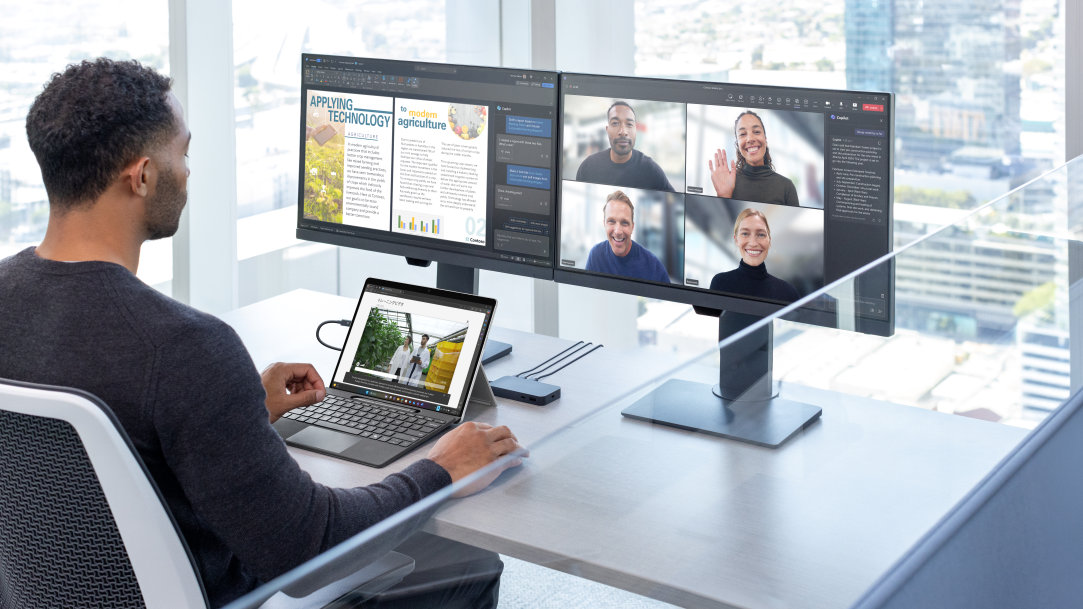
If you’ve ever felt the need for a larger desktop screen, a dual monitor setup might be for you. This specialized setup allows you to use a single computer or laptop across multiple screens. This can help you increase productivity; multitask amongst programs, apps, and web pages; and organize your screen so you have a better view of your open windows.
Tips for making your dual monitor desk setup work
There are a number of things you can do to configure the best dual monitor desk setup for your home or work office. You’ll want your setup to include similar screens and an overall design that helps you use the dual monitors in a safe and convenient manner.
Use similar screen resolutions
Although it’s not a requirement for dual screens to have the same resolution, there are benefits to using an additional screen with a resolution that’s close to your Surface laptop’s resolution. In addition to a consistent viewing experience, having similar resolutions will prevent you from straining your eyes while looking at a poor-quality screen. Good screen resolution can also reduce the need to enlarge text and windows, which means you’ll be able to fit more on both screens.
Keep cords hidden
Depending on how you set up your dual monitors, you may have long cords connecting different devices. These can be a trip hazard and/or get snagged and damaged in the wheels of your computer chair. It’s important to place the cords behind your dual screens and tie them, using zip ties or other options, so they don’t get tangled.
Use ergonomics
Configuring the perfect physical setup for your needs can help you get the most out of using dual monitors. It also prevents you from having to adjust your monitors each time you sit down. Here are some tips of an ergonomic setup:
- Place your primary monitor directly in front of you.
- If one of your eyes is more dominant than the other, place your second monitor by your dominant eye.
- Turn the second monitor at an angle toward you.
How to use dual monitors with your Surface laptop
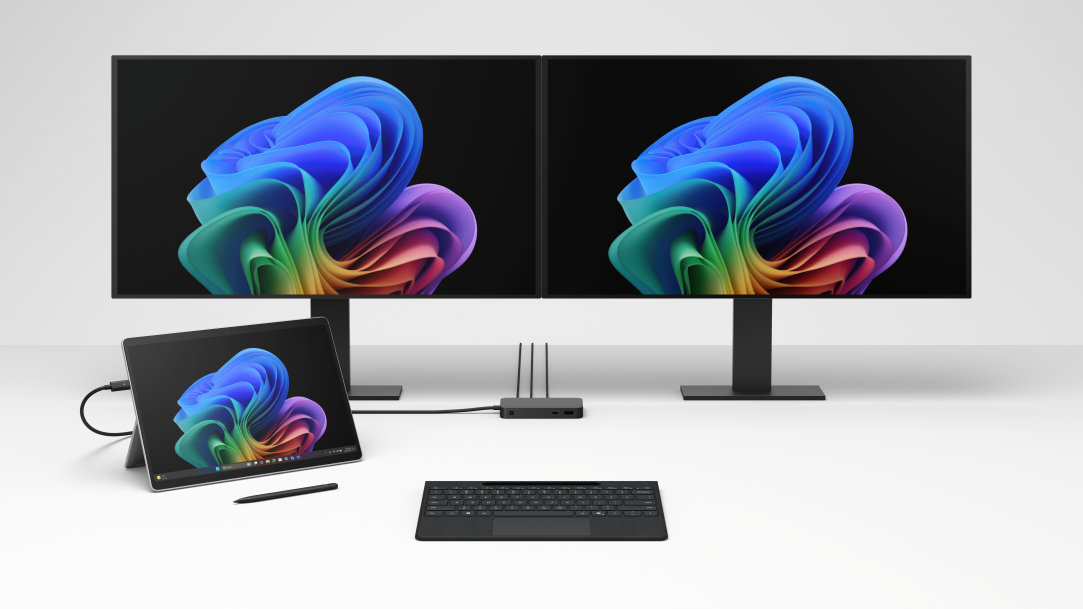
To set up your Surface laptop with dual monitors, you’ll need a USB-C® to HDMI or a USB-C® to VGA adapter to connect your Surface laptop to a second monitor. Depending on which Surface device you have, you can also use other accessories1, like a Surface USB4 Dock2, Microsoft USB-C® Travel Hub, Surface USB 3.0 Gigabit Ethernet Adapter, or Microsoft Wireless Display Adapter. The adapter you’ll need depends on what type of connection your second monitor requires. Once you have the adapter:
- Plug in the power cord of your second monitor.
- Connect one end of the video cable into your second monitor’s port.
- Plug in the other end of the video cable into the video adapter.
- Connect the adapter to your Surface device’s input.
Once you’ve set up your dual monitors, you can go to Windows System Display Settings on your Surface device to start using both monitors. You can duplicate both screens, extend your entire screen, or use only your Surface screen.
Frequently asked questions
-
Connect a Surface dock to your laptop using the included USB‑C cable, then connect your monitors to the dock using HDMI, USB‑C, or DisplayPort. Turn on the monitors, select the correct input, and use Settings > System > Display to extend and arrange your screens.
-
Use a Surface dock that supports dual displays, such as the Surface USB4 Dock or Surface Thunderbolt 4 Dock. Connect the dock to your laptop, plug in both monitors, power them on, and configure your display settings in Windows to extend your workspace.
-
Connect your laptop to a Surface dock capable of supporting two external monitors. After connecting both displays, turn them on and use Windows display settings to extend and position them to match your physical setup.
-
Dual monitors expand your available screen space so you can keep your main task on one display and supporting content on the other. When you choose Extend these displays in Windows, each monitor acts as a separate workspace, allowing smoother multitasking and fewer interruptions.
-
Xbox Series X supports only one display at a time through its single HDMI 2.1 port, so it cannot output to two monitors simultaneously. If you want to use two screens, you can switch the HDMI cable between them or use a monitor with multiple inputs and change the input source as needed, but the console will only display on one monitor at once.
- [1] Chargers, software, accessories, and devices sold separately. Availability may vary by market.
- [2] Surface USB4 Dock is compatible with USB-C® devices. However, when connected, it operates at the speeds and capabilities of the USB-C port. USB-C/USB 3.2 connection supports one external display up to 4K at 60Hz (when supported by device and display). Or you can daisy chain more monitors, as described in the section on this page: Connect multiple monitors to devices without USB4/Thunderbolt 4.
Products featured in this article

Microsoft Surface
Surface USB4 Dock

Windows 11
Related topics

Why a Microsoft Surface is the best Windows device experience

The differences between Surface Laptop and Surface Pro from Microsoft
