
We are refreshing how you connect Microsoft Dataverse to your analytics stack. “Azure Synapse Link for Dataverse” is becoming Link data, a single home for every way you move Dataverse data out: Link to Microsoft Fabric, Azure Synapse Link, and other targets. Fabric link is now the headline path, the setup wizard has been redesigned around it, and workspace identityis now the recommended authentication option. The new experience is rolling out now and will be available worldwide by early August 2026.
What is changing and why we are making this change?
Three things drove this refresh, all rooted in customer feedback and where the product is going.
1. The name no longer matched the product.
“Azure Synapse Link for Dataverse” was created when Azure Synapse Analytics was the only destination. Today, most new links go to Microsoft Fabric, and we ship updates to Fabric link on a far faster cadence than any other path. Keeping “Synapse” in the name was sending the wrong signal to customers evaluating their data architecture and was creating confusion in support tickets, partner conversations, and search results.
2. Fabric link creation was hidden in the wrong place.
In the old experience, the Azure Synapse Link page was where you went to see and manage your links, but its + New link button only created a Synapse link with your own storage. To create a Fabric link, you had to leave that page entirely, go to the Tables area, and choose Analyze > Link to Microsoft Fabric. Two surfaces, two mental models, and no clear signal that Fabric link was the recommended path. The new Link data page consolidates link management and link creation into one place, with Fabric link as the headline tile. The Tables > Analyze > Analyze in Fabric entry point still exists for in-context Fabric link creation, but Synapse link creation has been removed from the Tables page (Synapse links are now created only from the Link data page, under Other Links).
3. Authentication needs to get simpler and safer.
Workspace identity removes the most common Fabric link setup failure mode: misconfigured service principal permissions. It is also the path our security and platform teams recommend. Until now, it was an option you had to know to look for. The new wizard calls it out as the recommended choice and links straight to the Fabric docs for enabling it on your workspace. Workspace identity is configured on the Fabric workspace itself (outside Dataverse), so this is a one-time setup your Fabric admin does once per workspace, and every Dataverse link to that workspace benefits.
See the below video to see how you can setup Fabric Link using a refreshed user experience.
From “Azure Synapse Link” to “Link data”
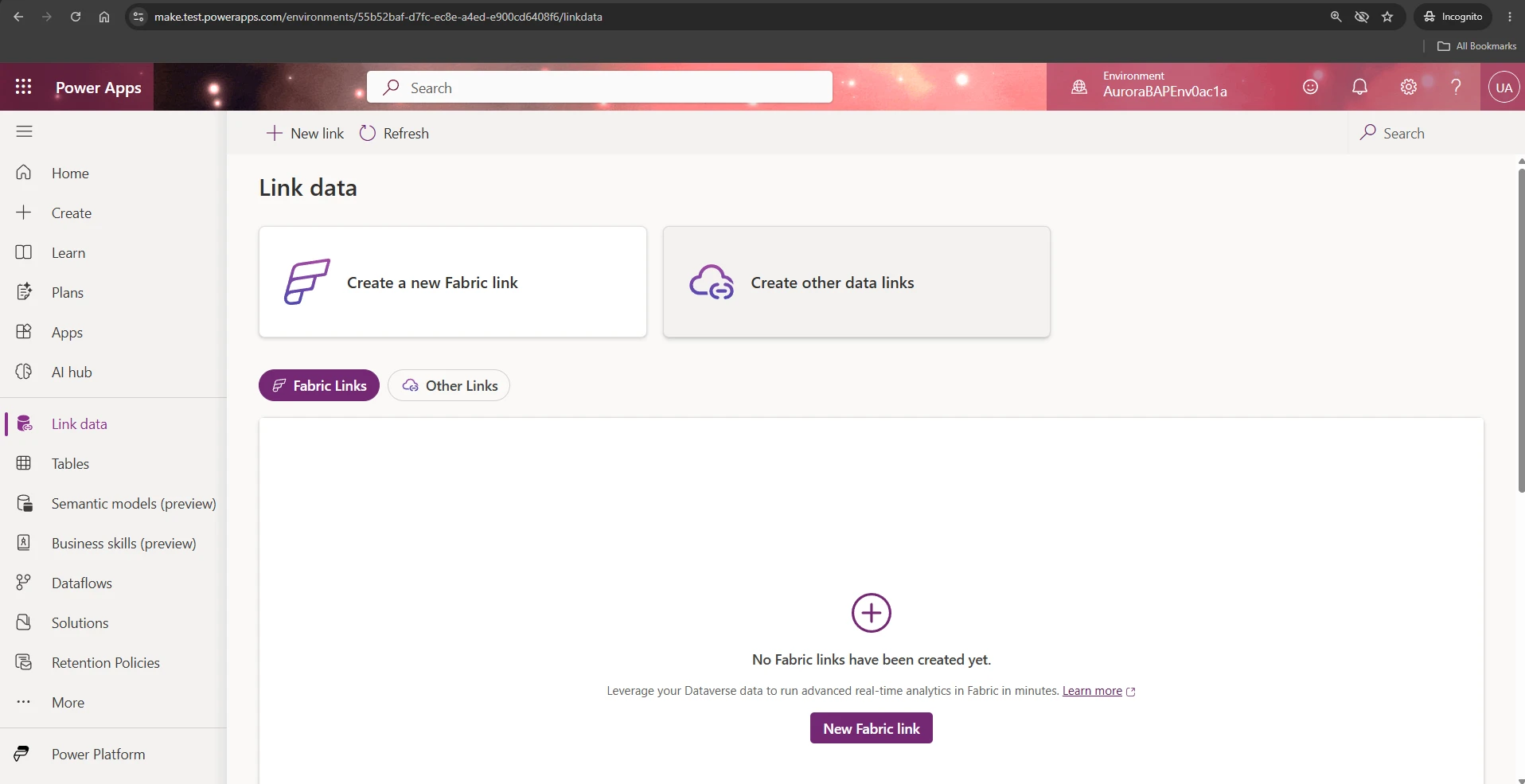
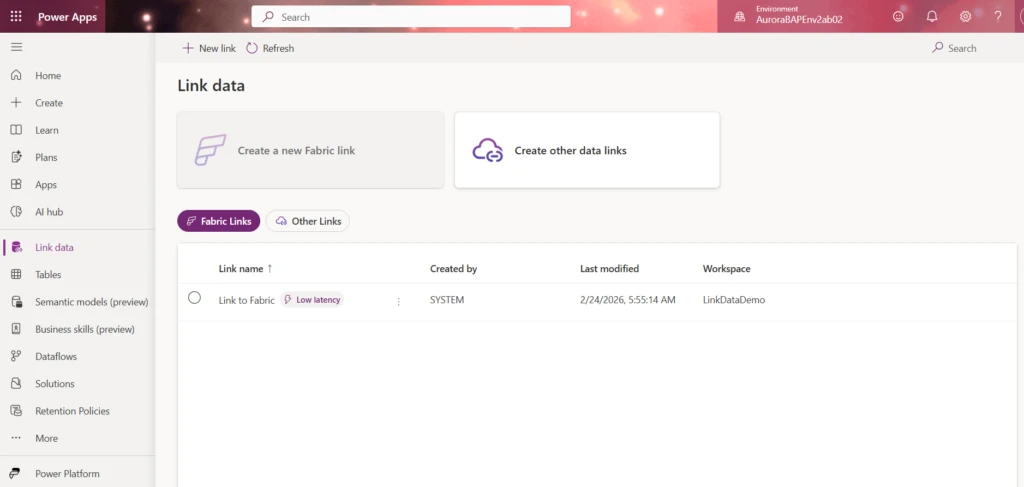
The left navigation entry in the Power Apps maker portal is now Link data. The landing page groups your links under two clear sections:
- Fabric Links: the recommended path for new analytics workloads. See Configure your environment and link to Microsoft Fabric.
- Other Links: Azure Synapse Link with your own Synapse workspace and Azure Synapse Link with Azure Data Lake continue to work here without any change.
Existing links keep running. There is no migration step. Any Azure Synapse Link you already have will automatically show up under the Other Links section on the new Link data page; you do not need to do anything to move it. If your runbooks or internal documentation reference “Azure Synapse Link for Dataverse”, update them to point at Link data.
We are also consolidating where links get created. The New link entry point for Azure Synapse Link with Azure Data Lake on the Dataflows page now redirects to the Link data page. Wherever you start, link creation now lands in the same place.
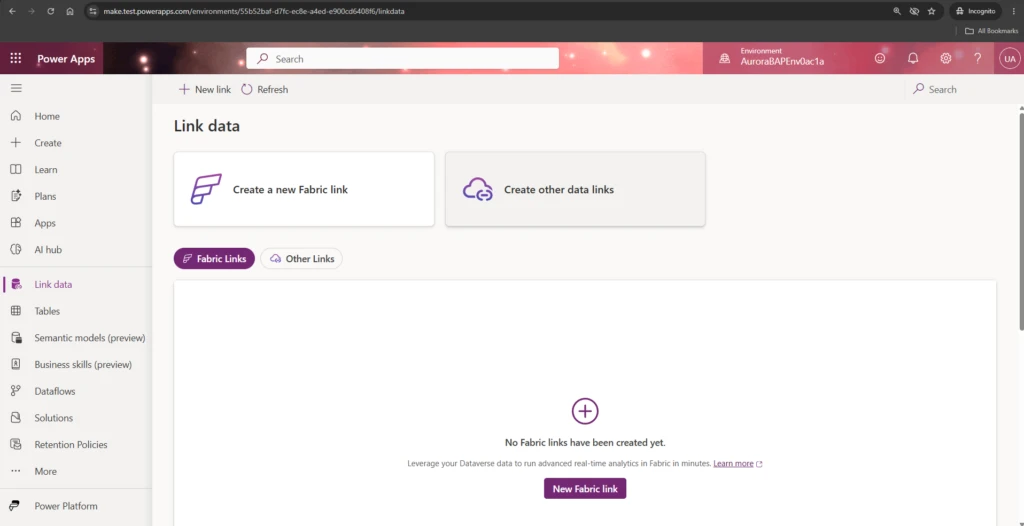
The new Link data page in the left navigation of the Power Apps maker portal, with Fabric Links as the headline section and Other Links below.
A redesigned Fabric link wizard
Creating a Fabric link now starts from the Link data page itself (no more hopping over to the Tables area) and walks you through three steps:
- Setup Configuration. Pick the Fabric workspace you want to link to and choose how to authenticate. Workspace identity is called out as the recommended option, with organizational account and service principal still available.
- Select Tables. Pick the Dataverse tables to sync,
- Review & Create Review your workspace, authentication, and table selections, then create the link.
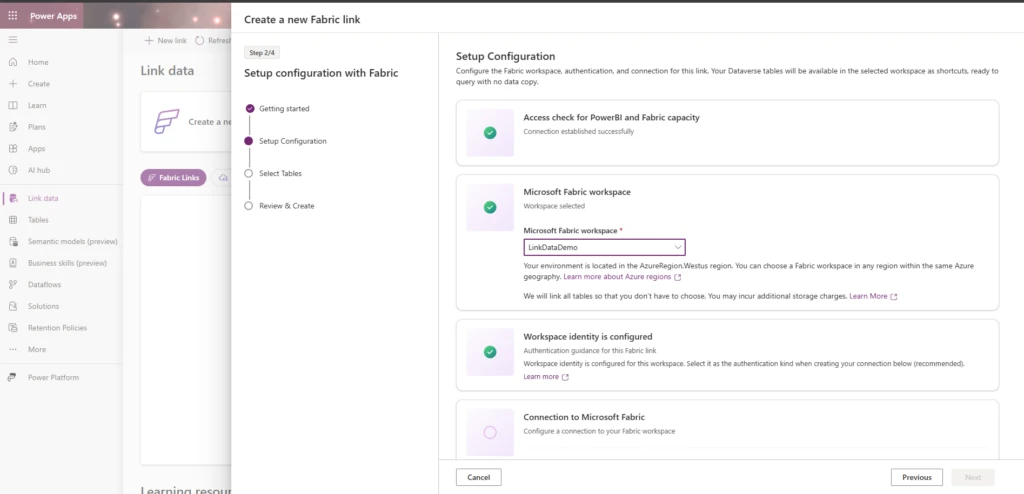
The Setup Configuration step: pick your Fabric workspace and connect, with workspace identity called out as the recommended authentication.
The post-create experience drops you directly into a standalone Manage tables experience, reachable any time from the top command bar. You no longer have to click on the link to add or remove tables.
The standalone Manage tables option, reachable from the top command bar at any time.
Workspace identity is the recommended authentication
The Setup Configuration step calls out workspace identity as the recommended option and points you at the docs for enabling it. Service principal and organizational account continue to work and remain selectable from the same step. The trust model is documented in Authenticate with workspace identity.
One thing to know up front: workspace identity is a property of the Fabric workspace, not of the Dataverse link. You enable it once on the Fabric side, outside of Dataverse, via the Fabric workspace identity docs. Once it exists on the workspace, the Fabric link wizard can use it, and the Configure Fabric link to use workspace identity section shows how to wire it into an existing link.
What this means for your team
Fabric link is the strategic path. Link data puts Fabric link front and center in the UI and in our roadmap. If you are deciding where to invest for new analytics workloads, this is the option we are building on.
One consistent UX for every link. Whether you are creating a new Fabric link, managing an existing one, or maintaining a Synapse link, you start and end on the same Link data page with the same look, the same controls, and the same docs. Learn more: For the updated end-to-end setup walkthrough, see Link your Dataverse environment to Microsoft Fabric.
What is not changing
- Existing links keep working. No migration, no relink required.
- Azure Synapse Link, Azure Data Lake, and other targets are still fully supported under Other Links.
- APIs and admin automation for existing flows are unchanged. The rename is a UX and Information Architecture change, not a contract change.
- Pricing and metering are unchanged.
Looking ahead
Link data is the umbrella we will keep building under. Two improvements we are actively working on:
- Easier table selection. Picking tables one at a time is cumbersome for large environments. We are working on a faster, more flexible selection experience so you can get to the set you need with far fewer clicks.
- Multiple Fabric links to different workspaces. Today an environment links to a single Fabric workspace. We are adding support for creating multiple Fabric links from the same Dataverse environment to different Fabric workspaces, so different teams and workloads can each have their own target.
Beyond those, expect continued investment in Fabric link as the primary sync path (including the low-latency sync engine that is rolling out now) and more guided setup so customers always know which path to invest in.
We want your feedback
If you set up a new Fabric link in the next few weeks, we want to hear what worked and what did not in the new wizard, especially around workspace identity.
- Share feedback: post on the discussion in our Viva Engage community. Not a member yet? Sign up here.
- Try it now: create a new Fabric link from the Link data page in the Power Apps maker portal.